01
Connecting
The client is establishing the link with the selected route. A short pause is normal; only a long freeze needs action.
The status in the client is itself a clue. Each state points to a different first move.
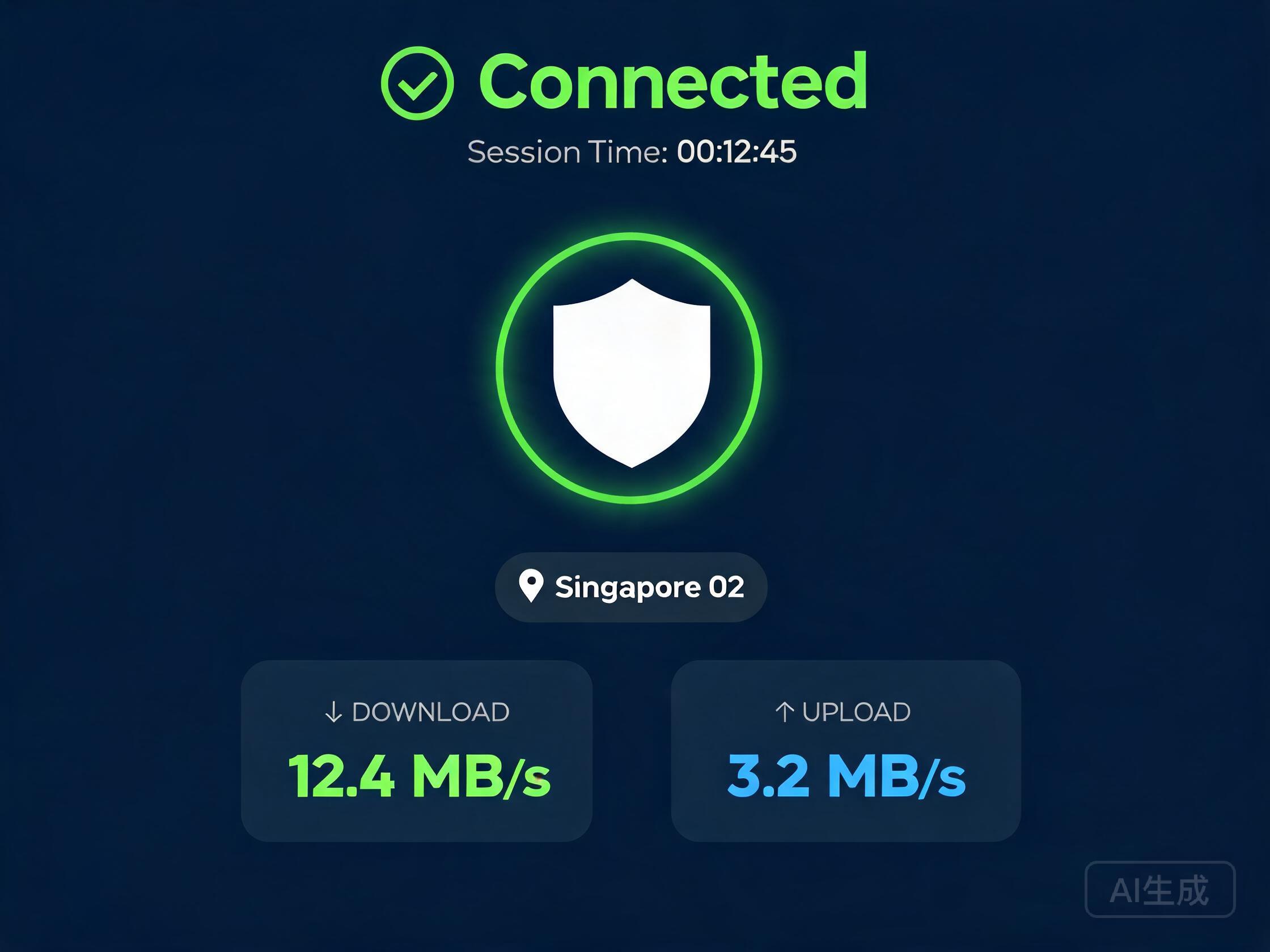
Illustrative mockup: connected state with session time and speed. Refer to your installed version.
The client is establishing the link with the selected route. A short pause is normal; only a long freeze needs action.
The link is up. If usage feels wrong at this point, the connection itself is rarely the cause — check the scenario first.
The connection did not establish. Work through the path below one item at a time instead of trying several things at once.
Follow the order. Each step verifies one thing, so the real blocker becomes obvious.
Confirm the device reaches other websites normally. An unstable local network affects every route equally.
If the status stays on connecting, give it a moment. A brief pause right after starting is part of the normal flow.
When nothing changes for a long time, disconnect to reset the client state, then start the connection again.
Reopen the route list and pick a different route with normal status to rule out a single route problem.
If none of the above works, stop retrying, prepare the details in the next section, and submit a report.
The two symptoms start from different fixes. Mixing them wastes time and records.
Follow the five-step path above. The focus is ruling out your local network and a single bad route.
Pause downloads, syncs, and other heavy tasks, make sure no other network tools are running, then compare against a more stable route.
Specific details mean faster answers. Gather the following first:
When it happened, your device system, the client version, and the exact message or behavior the client showed.
Say which of the five steps you reached and what changed, so support can skip repeated checks.
Never include passwords, verification codes, or full credentials in a report. Official staff will not ask for them.
Full setup from download to your first connection.
Match other common symptoms with their fixes.
Transfer steps and slot handling after changing devices.
Send the time, system version, and behavior you recorded to official support — it beats repeated reinstalls.